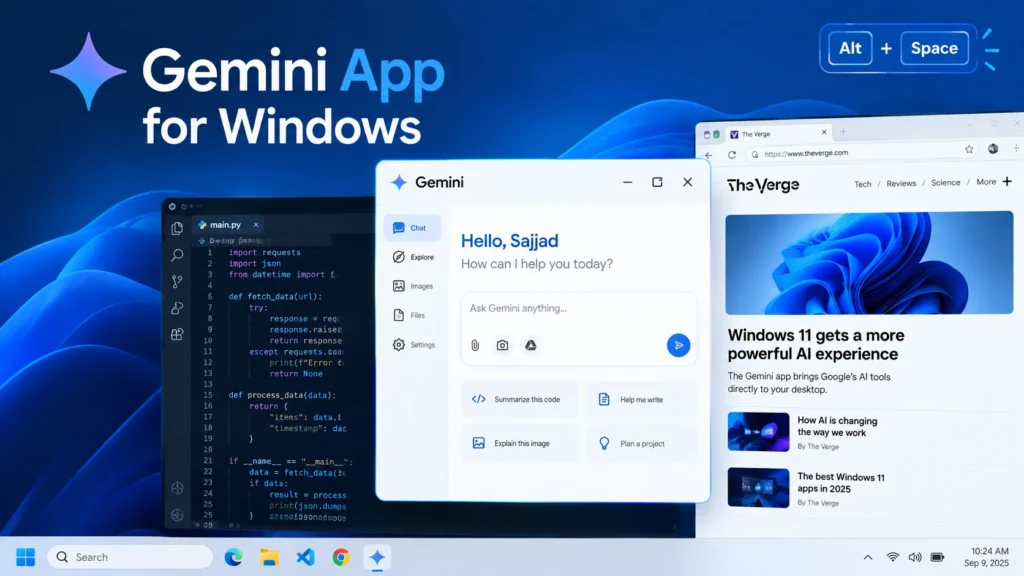
Google shipped a real, installable Gemini app for Windows on September 10, 2026. Not a browser tab. Not a Chrome extension. An actual .exe you download, install, and summon with Alt+Space from anywhere on your PC.
We installed it the same day it dropped. Here’s what it actually does, how to get it safely, and whether it’s worth replacing (or running alongside) Copilot.
What Is the Gemini App for Windows?
The Gemini app for Windows is a standalone desktop client that puts Google’s AI assistant one keyboard shortcut away, no matter what you’re doing on your PC. Press Alt + Space, and a floating Gemini window pops up over your active app — your browser, your code editor, your spreadsheet, whatever’s open.
It’s Google’s answer to something Microsoft has had baked into Windows for three years: Copilot, complete with its own taskbar button and, on newer laptops, its own physical keyboard key. Gemini just walked onto that turf without an invitation.
What Can It Actually Do?
This isn’t a stripped-down chat box. The Windows client packs in four things worth knowing about:
- Instant answers over any window. Ask a question, get a real-time response, without switching apps or opening a browser tab.
- Gemini Spark for multi-step tasks. You can hand off a longer job — research, drafting, organizing — and let Spark work through it while you keep doing something else.
- Nano Banana and Gemini Omni for media. Generate images with Nano Banana or short video clips with Gemini Omni, right from the same overlay.
- Google Workspace hooks. It can pull from Gmail, Google Drive, Docs, and Calendar, so you can ask it to summarize an email thread or a shared doc without leaving your desktop.
One detail we liked: the chat window isn’t pinned to a sidebar. You can drag it around your screen, which Copilot’s panel still doesn’t let you do.
How to Download the Gemini App for Windows
Here’s the part every other post glosses over: there is only one official download source, and it’s worth being paranoid about that.
- Check your system meets the requirements. You need Windows 10 or later, at least 8 GB of RAM, 200 MB of free disk space, a stable internet connection, and a Google Account (personal, or a work/school account with Gemini access turned on by an admin).
- Go directly to gemini.google/desktop. Type it yourself — don’t click a link from a random forum post or a sponsored ad. Google and multiple outlets have confirmed this is the only legitimate installer source, which matters because fake “AI assistant” installers have been a real malware vector.
- Download GeminiSetup.exe and run it. Follow the on-screen prompts. Installation is quick — it’s a lightweight client, not a full application suite.
- Sign in with your Google Account once it opens.
- Press Alt + Space to test the overlay. That’s your new shortcut for the app going forward.
The app also drops an icon in your system tray, so you don’t strictly need the shortcut every time — you can click through from there too.
Is the Gemini App for Windows Safe?
Yes, as long as you download it from gemini.google/desktop and nowhere else. Google deliberately centralized the download to one URL instead of spreading it across app stores and mirrors, and that’s a smart call — third-party “AI assistant” installers have been a known way to sneak malware onto people’s machines. If you see the Gemini app being offered anywhere except that one domain, skip it.
Beyond that, this runs on the same privacy and data-handling terms as Gemini in your browser. If you’re comfortable using Gemini on the web or in Chrome, the desktop client doesn’t introduce a new risk category — it’s the same account, same settings.
Gemini App for Windows vs. Copilot: The Honest Comparison
We’re not going to pretend one of these just wins outright, because they don’t compete on quite the same turf.
| Gemini App for Windows | Microsoft Copilot | |
|---|---|---|
| How you get it | Separate download from gemini.google/desktop | Pre-installed on new Windows PCs |
| Shortcut | Alt + Space (customizable) | Taskbar icon, dedicated Copilot key on newer keyboards |
| OS integration | Floats over any window, system tray | Built into the Windows 11 shell |
| Media generation | Images (Nano Banana), video (Gemini Omni) | Image generation via Designer integration |
| Best for | Gmail/Drive users, research, creative drafting | Microsoft 365 workflows, Windows settings, PowerShell |
| Cost | Free tier, paid Gemini plans available | Free tier, Microsoft 365 Copilot add-on |
The honest read: if your daily work already lives in Gmail, Google Docs, and Google Drive, the Gemini app removes a browser tab from your workflow and adds real image/video generation Copilot doesn’t match yet. If you’re deep in Word, Excel, Outlook, and Teams, Copilot’s tighter hooks into those apps still make more sense.
Copilot also has one advantage that’s easy to underrate: it’s already there. No download, no sign-in flow, no extra icon in your tray. Gemini has to earn that install.
Should You Actually Install It?
If you’re already a Gemini user on Android or in Chrome, yes — it’s a five-minute install and it genuinely removes friction. Being able to summon it over any window without opening a browser is a real convenience, not just a marketing line.
If you’ve never used Gemini and you’re happy with Copilot, there’s less urgency. Try it if you’re curious, but don’t expect it to replace a tool you already have muscle memory for overnight.
One thing we’d skip for now: don’t count on deep native Windows integration yet. Google itself says more native desktop capabilities are still rolling out over time — what shipped on September 10 is closer to a polished overlay than a system-level assistant like Copilot has become.
FAQ SECTION
Q1: Is the Gemini app for Windows free? A1: Yes. The base app is free to download and use with any Google Account. Google also offers paid Gemini plans with extra features, like a larger context window, but they’re optional — the free tier works fine for everyday questions and tasks.
Q2: What are the system requirements for the Gemini Windows app? A2: You need Windows 10 or later, at least 8 GB of RAM, 200 MB of free storage, and a stable internet connection. Both x64 and ARM64 devices are supported, so it runs on newer ARM-based Windows laptops too.
Q3: Where do I download the Gemini app for Windows safely? A3: Only from gemini.google/desktop. That’s the single official source Google has confirmed. Avoid third-party download sites, forum links, or app-store listings claiming to offer it — those are common vectors for fake AI-assistant malware.
Q4: Does the Gemini Windows app replace Copilot? A4: Not exactly — they can run side by side. Copilot is built into Windows itself and works closely with Microsoft 365 apps, while Gemini is a separate download built around Google’s ecosystem, image and video generation, and Gmail/Drive access. Many people will end up using both.
Q5: Can I use a different keyboard shortcut than Alt + Space? A5: Yes. Alt + Space is the default, but the shortcut is customizable in the app’s settings if it conflicts with another program you use.
Q6: Will the Gemini app slow down my computer? A6: Google says it’s built to be lightweight and quiet in the background, and our install matched that — it sat in the system tray without any noticeable resource hit during normal use. As with any background app, very low-end hardware will feel it more than a modern machine will.